The Call Recordings and AI Recap capability in the Elevate Desktop, Web app, and Embedded Teams app lets users capture conversations, review audio, read transcriptions, and see AI insights such as sentiment, topics, and summaries—all in one place.
Note: the information in this article also applies to Teams Embedded Integration but not to Teams Mobile app.
TABLE OF CONTENTS
- Call Recording Overview
- How to Enable Call Recording
- Automatic and On-Demand Recording
- Using On-Demand Call Recording
- How to Listen to a Call Recording
- Call Recordings in Elevate Desktop app and Teams Embedded App: Overview
- How to Enable Call Recordings Section in Elevate Desktop App and Teams Embedded App
- How to Find the Call Recordings Section
- What You See in the Recordings List
- Inside a Call Recording Card
- AI Call Recap Overview
- How to Enable AI Call Recap
- AI Insights Overview
- Special Call Card Display Cases
- 3-Way Calls
- FAQ
Call Recording Overview
The Call Recording feature allows users to capture and store phone conversations for future reference. With this functionality, users can review call content, verify important details, and maintain records of customer or internal interactions.
Important: call recording laws vary by location; administrators configure announcements and policies based on local regulations.
How to Enable Call Recording
Users can record calls if an account administrator has enabled the feature for the user or a user group in CONTROL PANEL. Further details are available in this article: How to Configure and Work with Call Recordings in Elevate (Admins).
Automatic and On-Demand Recording
A user may have automatic call recording enabled, in which case all calls—or only incoming or outgoing calls—are recorded according to the administrator's settings. Alternatively, on-demand call recording can be enabled, allowing the user to start and stop recording manually.
Using On-Demand Call Recording
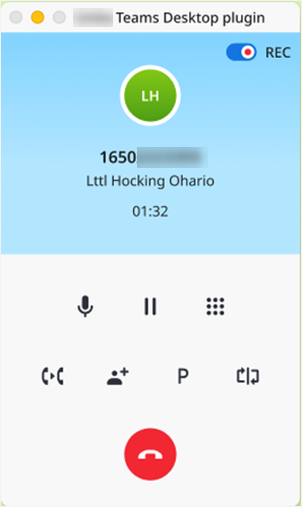
- Start recording: Use the Recording control in the call bar in Elevate Desktop or the Desktop plugin (Teams Embedded app).
- If enabled by your administrator, the system plays an announcement: Your call is being recorded.
Note: administrators may disable this announcement to comply with regional requirements. - Pause or resume: Use the Pause/Resume button in the call interface.
Managing Call Recordings in Elevate Desktop and Web
Recording controls are visible only if recording is enabled for the user (automatic or on‑demand).
- Automatic recording starts when the call begins. The interface shows a recording indicator. Users can pause or resume as needed.

- On‑demand recording must be started manually by the user. Once started, it can be paused and resumed within the same call session.

Pause behavior in a two‑party call
If a user is on a call with an external participant, they can pause and resume the recording independently. If a user is on a call with another company user who is also using the Elevate app, pausing the recording affects both sides:
- If the recording is active for only the current user, the other user will not be able to start a recording (even if recording is available to them).
- If recordings are active for both users, the second user will also see that the recording is paused and, for security reasons, will not be able to resume it.
- Only the participant who initiated the pause can resume the recording. Other participants see the paused state but cannot resume or start a new recording until the original participant resumes.

Multi-Call Handling
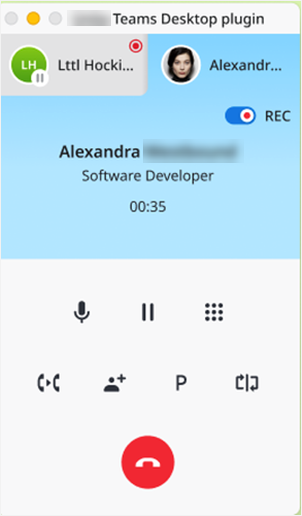
- When multiple active calls are in progress, the system creates separate recordings for each call.
- Switching between calls does not interrupt or stop ongoing recordings.
- Recordings can be paused or resumed individually per call. The user must be actively viewing the specific call’s interface to control its recording.

On Hold
When a call is placed on hold, recording controls are disabled—starting, pausing, or resuming a recording is not possible. However, the recording continues in the background while the call remains on hold.
3‑Way Calls
- If both calls were being recorded, they are paused and resumed together using a single control.
- If only one call was being recorded, only that recording can be paused and resumed. The other call cannot be recorded after the merge.
- If no recording was started before the merge, recording will not be available in the 3-way call.

Managing Hunt Group Call Recordings in Elevate Desktop and Web
- When automatic call recording is enabled for a Basic or Advanced Hunt Group, the Hunt Group policy overrides individual end-user call recording permissions. As a result, an agent can pause and resume Hunt Group call recording even if they do not have permission to create personal call recordings.
- Hunt Group call recordings are available only to administrators and are not delivered to agents. If Hunt Group agents need to receive a copy of the call recording, administrators must enable the auto-recording policy for those users individually.
- If account owners do not want agents to control Hunt Group call recordings, they should contact Support or their Sales representative to have this feature disabled.
Managing Call Recordings in Teams Embedded App
In the Teams Embedded app, call recording behavior follows the same logic as the Elevate Desktop app—covering automatic and on‑demand recording, pause/resume controls, Hunt Group behavior, and call segmentation, however, all recording controls and indicators are accessed through the Desktop plugin.
 |  |
How to Listen to a Call Recording
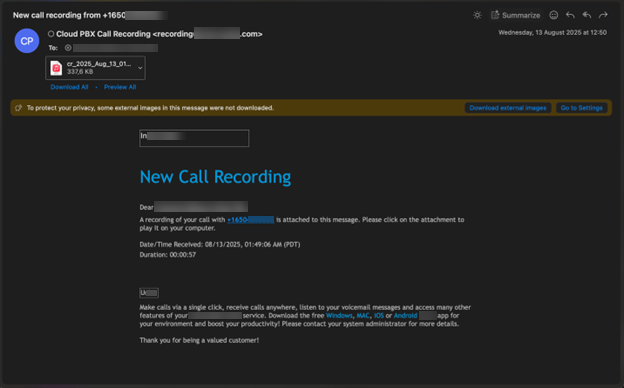
After the call ends, you will receive an email from Cloud PBX Call Recording with the subject line: New call recording. The recording file will be available as an attachment in the email.
Call Recordings in Elevate Desktop app and Teams Embedded App: Overview
The Call recordings section in the Elevate Desktop, Web app, and Teams Embedded app allows users to access and review recordings directly in the app. Users can replay or download call recordings for later reference.
How to Enable Call Recordings Section in Elevate Desktop App and Teams Embedded App
Administrators must enable Archiving. For configuration details, please open a ticket with our support team.
How to Find the Call Recordings Section
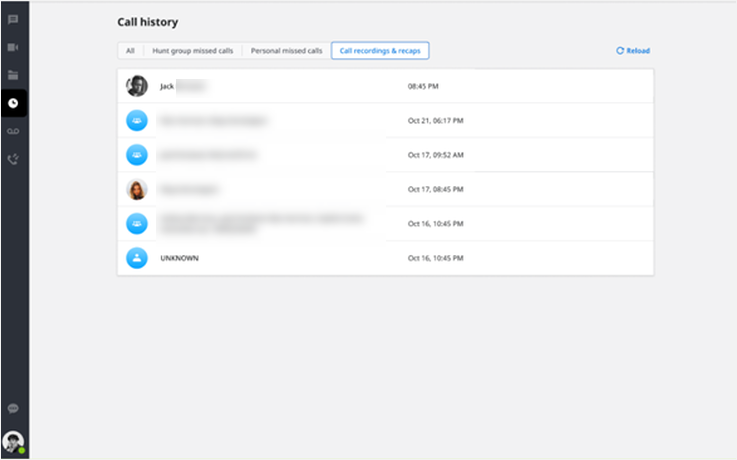
- In the Elevate Desktop or Web App, open Call History.
- Click the Call recordings and recaps tab.
- The tab displays a list of your personal call recordings.
What You See in the Recordings List
- Call time and date: the most recent calls appear at the top.
- Participants: names or numbers of other call participants (your own name is hidden).
There is no counter for new or unread recordings on this tab. Open it periodically to check for newly available recordings, sentiment analysis, and topics are available for that call.
Notes:
- If you do not have any recordings yet, the list will be empty.
- Only recordings made under your account are shown—recordings made by other users are not visible to you, even if you heard a recording announcement during the call. Those recordings will be available only to the user who initiated the recording.
- If a recording is made by a Hunt Group, agents will not have access to those recordings. If you are an agent and want your part of a Hunt Group call to be recorded, ask your administrator to either enable Automatic Call Recording for you, or grant you On-Demand Call Recording settings so you can record specific calls manually by pressing #9.
Inside a Call Recording Card
Clicking a call from the list opens the Call Recording Card, which displays detailed information about the selected call.
- Call timestamp
- Participants of the call
- Recording player to listen to the call, with an option to download the recording to your device
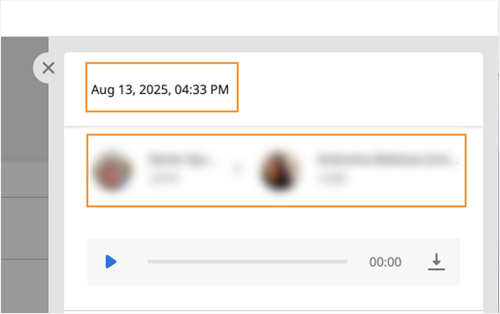
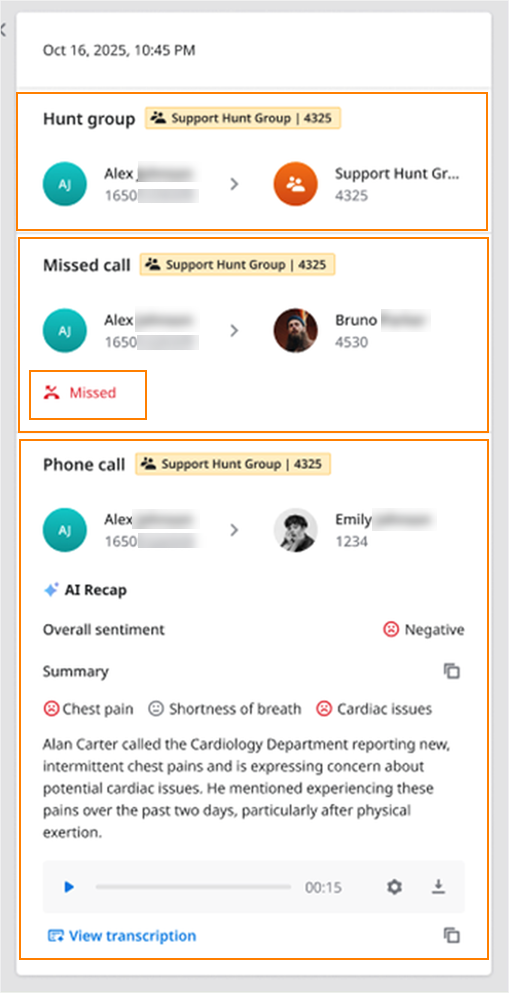
Each call recording card can include multiple segments, where each segment represents a part of the call involving two participants. A single call may contain multiple segments — for example, in the case of a transfer, when one participant passes the call to another. In such cases, the card will show two separate sections, each with its own set of details and recordings. The segments are displayed in chronological order, showing the flow of the conversation.
AI Call Recap Overview
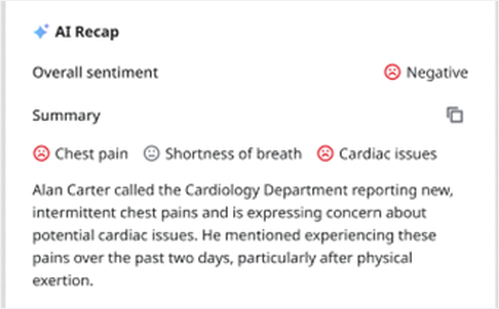
The AI Call Recap functionality allows users to not only replay call recordings, but also to read and copy transcriptions, and access AI insights such as sentiment analysis, main topics, and a summary of the conversation.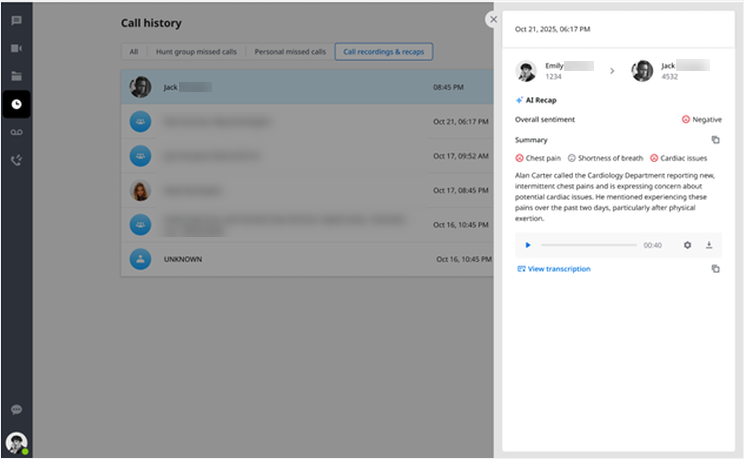
How to Enable AI Call Recap
AI Insights Overview
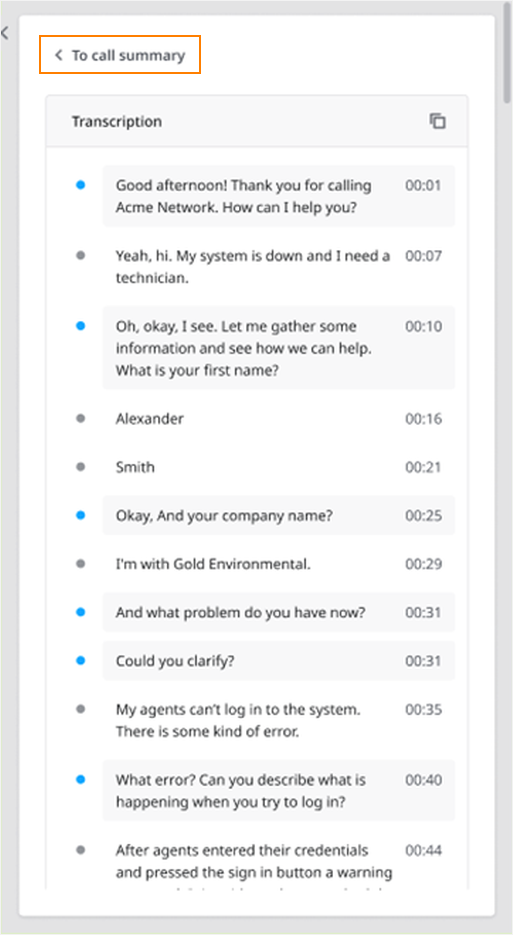
- Transcript viewer: selecting Show Transcription opens the full transcript view, which displays the conversation broken down into individual phrases. Each speaker is identified with a colored marker for clarity, and the full transcript can be copied with a single click.
- AI Insights: provides a summary of the discussion, key topics, and sentiment analysis.
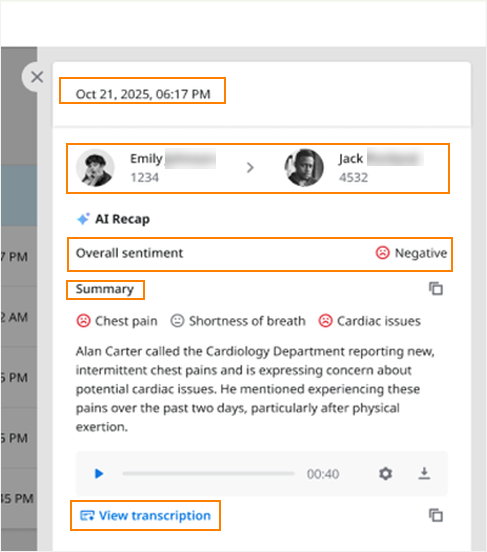
AI Insights block includes:
Summary: a short AI-generated recap of the conversation
Topic tags: key themes or subjects mentioned during the call
- Sentiment tags: indicators of positive, neutral, or negative tone
This block helps you quickly understand the context and content of the call without listening to the entire recording.
Special Call Card Display Cases
Hunt Group (HG) Calls
In the card for a call to a Hunt Group or Advanced Hunt Group, all segments display the Hunt Group number and name, making it clear in which group the call placed. If you called a Hunt Group, you may see additional segments for agents who did not answer.
3-Way Calls
If you merged a call between two participants, the recording is still created separately for each conversation:
- If your account is set to automatically record all calls, there will be two call recordings created, each containing details and audio where all participants of both calls you merged are audible.
- If you activated recording manually for a single call, you will see the call with that user, but the recording will include audio from all participants of both calls you merged. You will see two separate call entries, each containing details and audio where both participants are audible.
FAQ
Q: Why can’t I see some recordings even though I heard the recording notification?
A: Only recordings that you personally started appear in your list. If another participant initiated the recording, it will not be visible to you.
Q: How long are recordings available?
A: Each User, when recording phone calls, has up to 90 days or 48 hours of storage time. These retention limits can be changed by your administrator. For more details, see article How to Configure and Work with Call Recordings in Elevate (Admins). When storage is full, new recordings stop being saved, but existing recordings remain available without time limits.
Q: What if my AI Recap or transcript doesn’t appear?
A: Ensure that AI Call Recap is enabled on your account and that the call contained enough spoken content for transcription.
Q: Can I delete a recording?
A: At this time, users cannot delete call recordings from within the Elevate App. Deletions are managed by an administrator.
Q: How can I check for new recordings?
A: There is no counter for new or unread recordings; open the Call recordings and recaps tab to check for newly available items.
Was this article helpful?
That’s Great!
Thank you for your feedback
Sorry! We couldn't be helpful
Thank you for your feedback
Feedback sent
We appreciate your effort and will try to fix the article