The Teams Embedded Integration Call Settings page allows you to manage the following features:
TABLE OF CONTENTS
To access this page, in Elevate Teams Embedded Integration, navigate to Settings > Call Settings.
Choose Calling Device
Use radio buttons to switch between the two application modes: Computer and Deskphone.
While in Computer mode, you can also edit the emergency service address for the app.
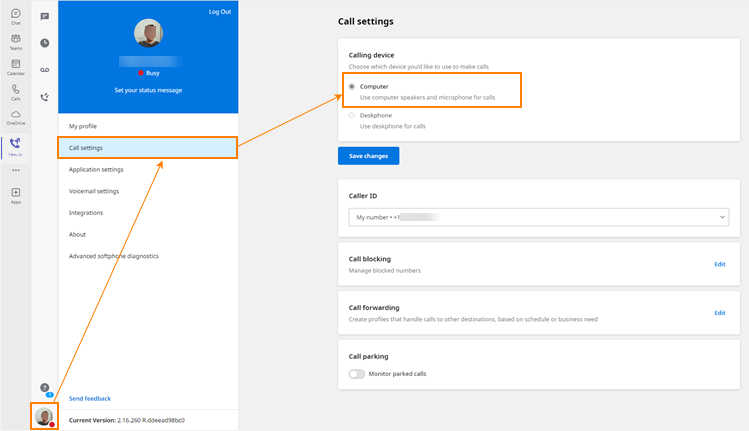
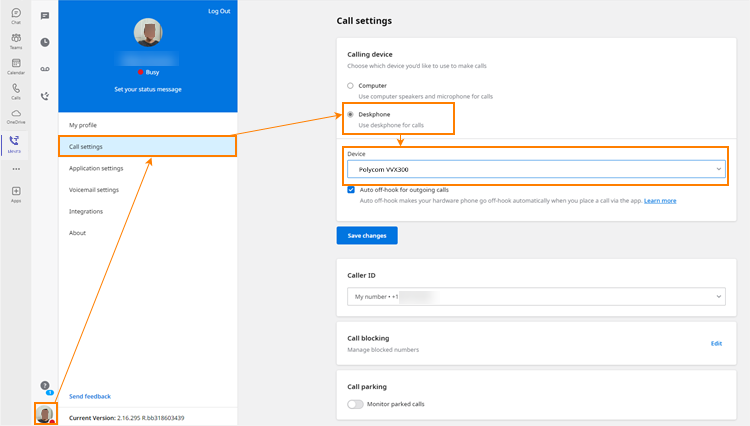
Read the article Elevate Teams Embedded Integration: Deskphone and Computer Modes for more information.
Manage Outbound Caller ID
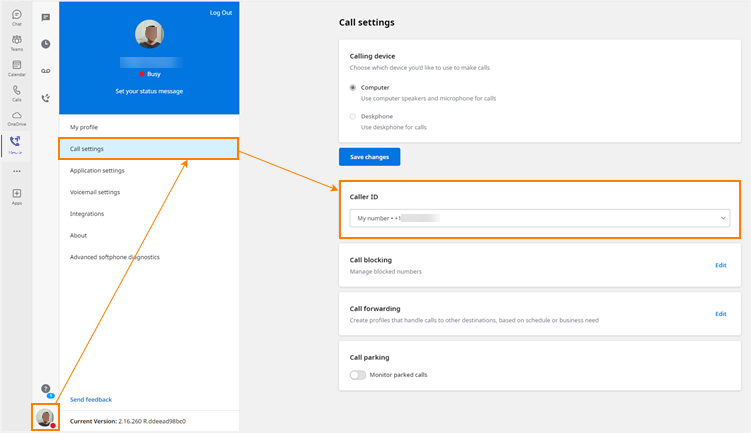
The following options are available:
- User DID
- Anonymous
- Auto Attendants
- Hunt Groups where the end-user is a member
Manage Blocked Numbers
The Elevate Teams Embedded app allows you to block incoming calls from specific numbers. If you receive a call from a number you have configured to be blocked, then that call will immediately go to voicemail. Read the Knowledge article on Call Blocking for more information.
Manage Call Forwarding
Call forwarding is a feature for Elevate Users and Resources which allows setting up forwarding profiles that process incoming calls in a preferred way. A call forwarding profile can send an incoming call to several apps/devices/phone numbers simultaneously or sequentially and forward it elsewhere if the call wasn't picked up. Read the Knowledge article on Call Forwarding for more information.
Was this article helpful?
That’s Great!
Thank you for your feedback
Sorry! We couldn't be helpful
Thank you for your feedback
Feedback sent
We appreciate your effort and will try to fix the article