This guide is intended for users who will use the Elevate softphone in Microsoft Teams and need assistance with their initial setup.
1- First, you will need to open the MS Teams Desktop application and search for "Elevate" within "Apps".
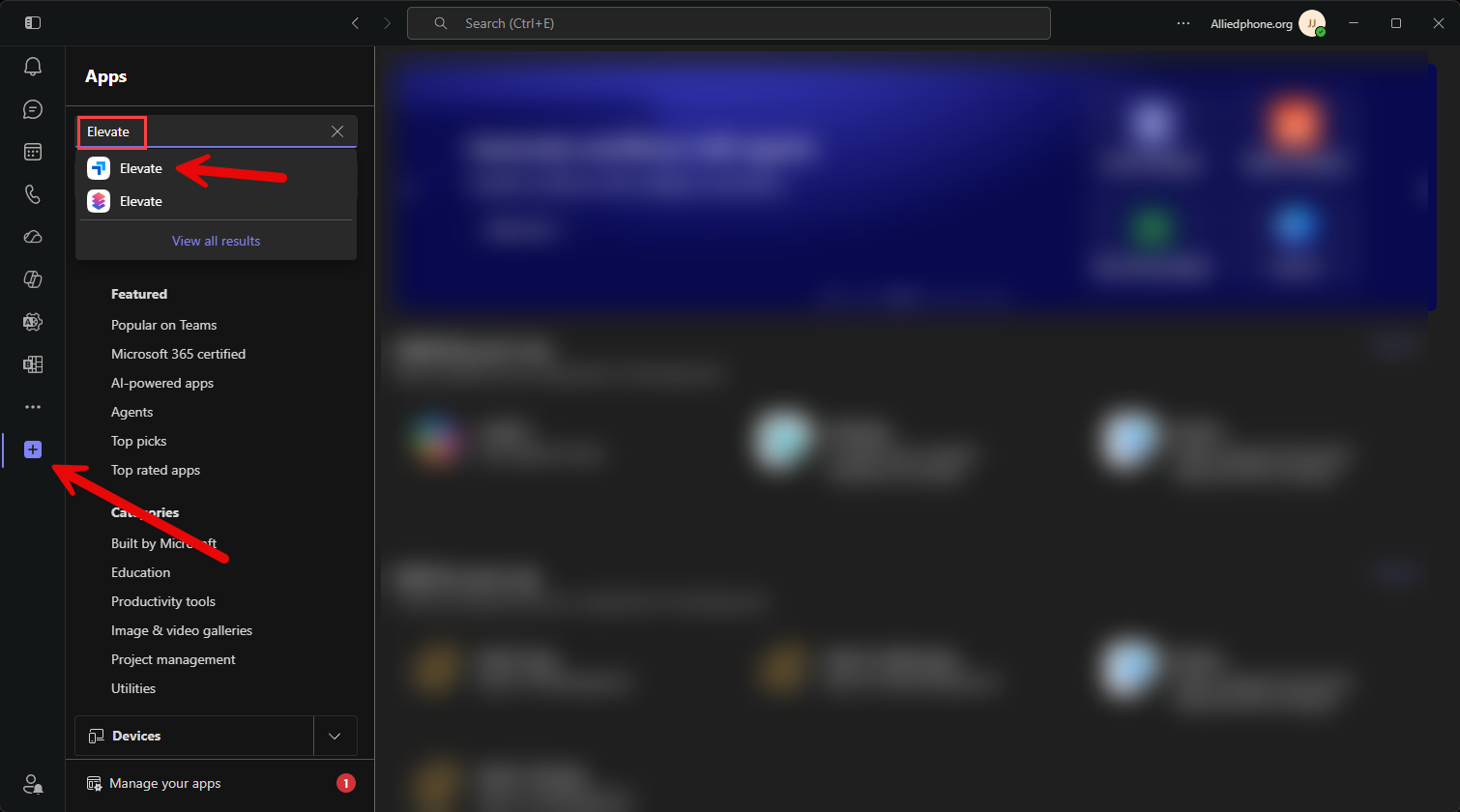
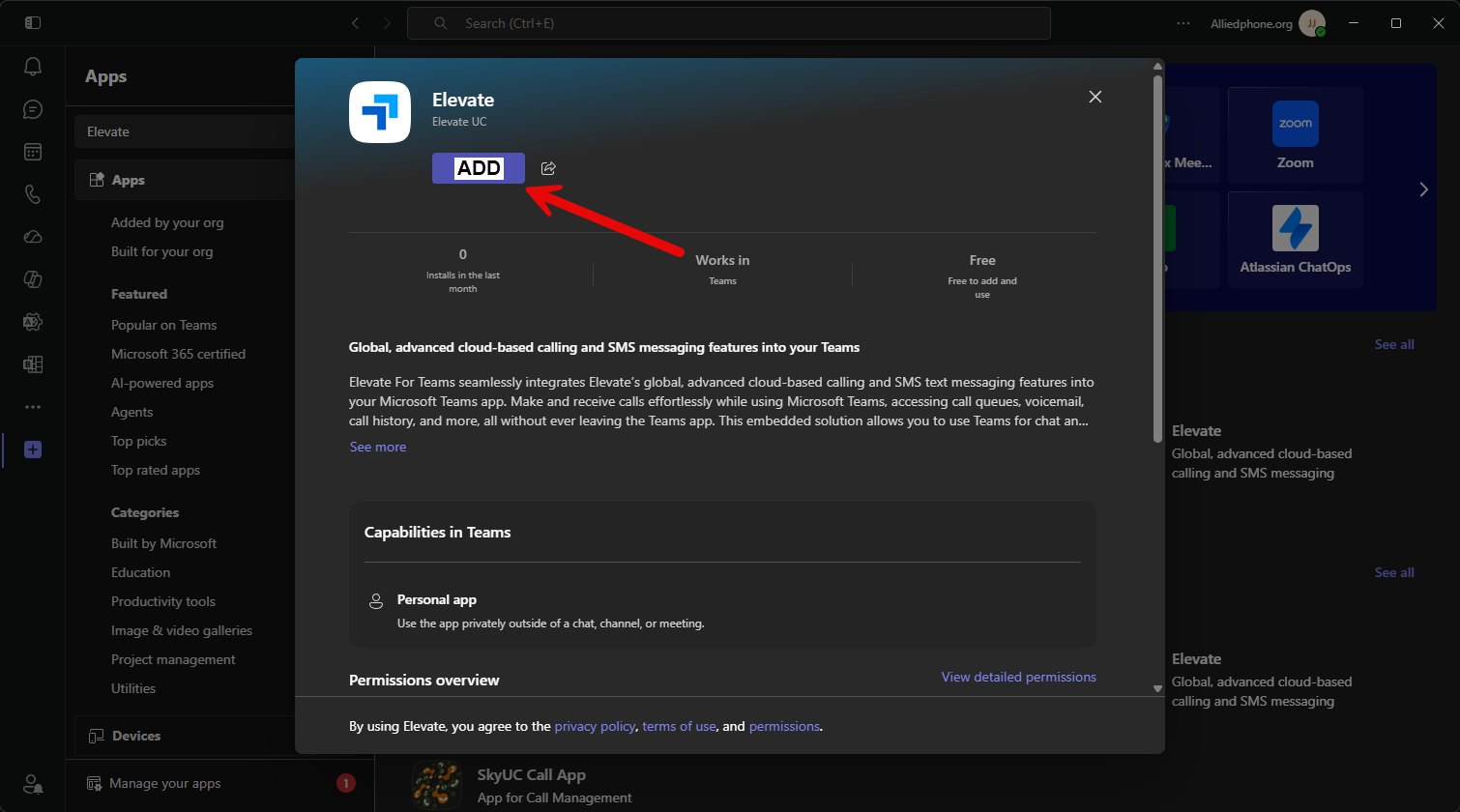
2- Select "Elevate" then select "ADD". If the button says "Open" rather than "ADD" then you can skip this step.
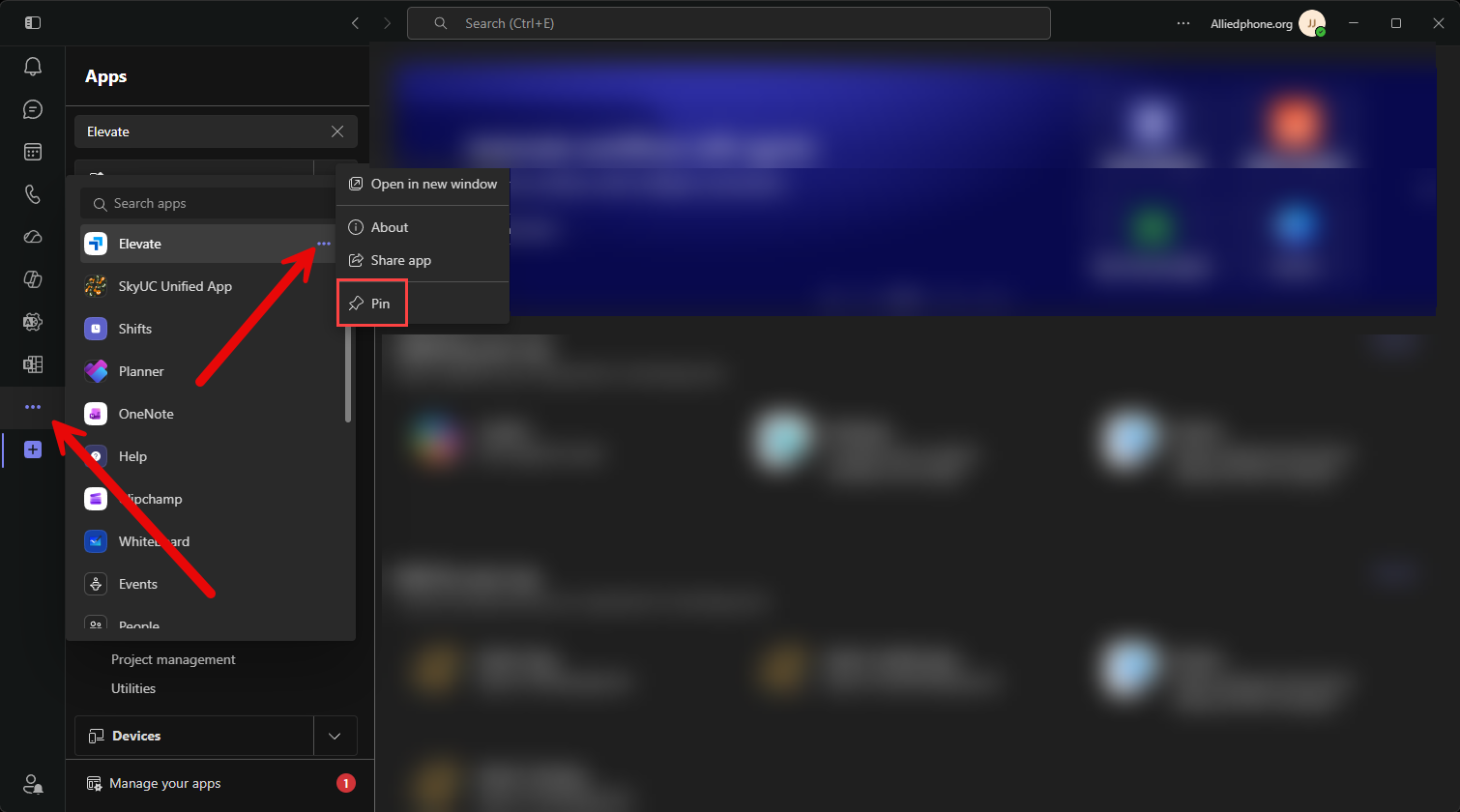
3- Now, Elevate should be available in your MS Teams list of Apps on the left pane. Select the 3 dots so you are able to view Elevate. Hover over Elevate and select the 3 dots to the right, and select PIN. This will Pin the Elevate App to your left pane within MS Teams.
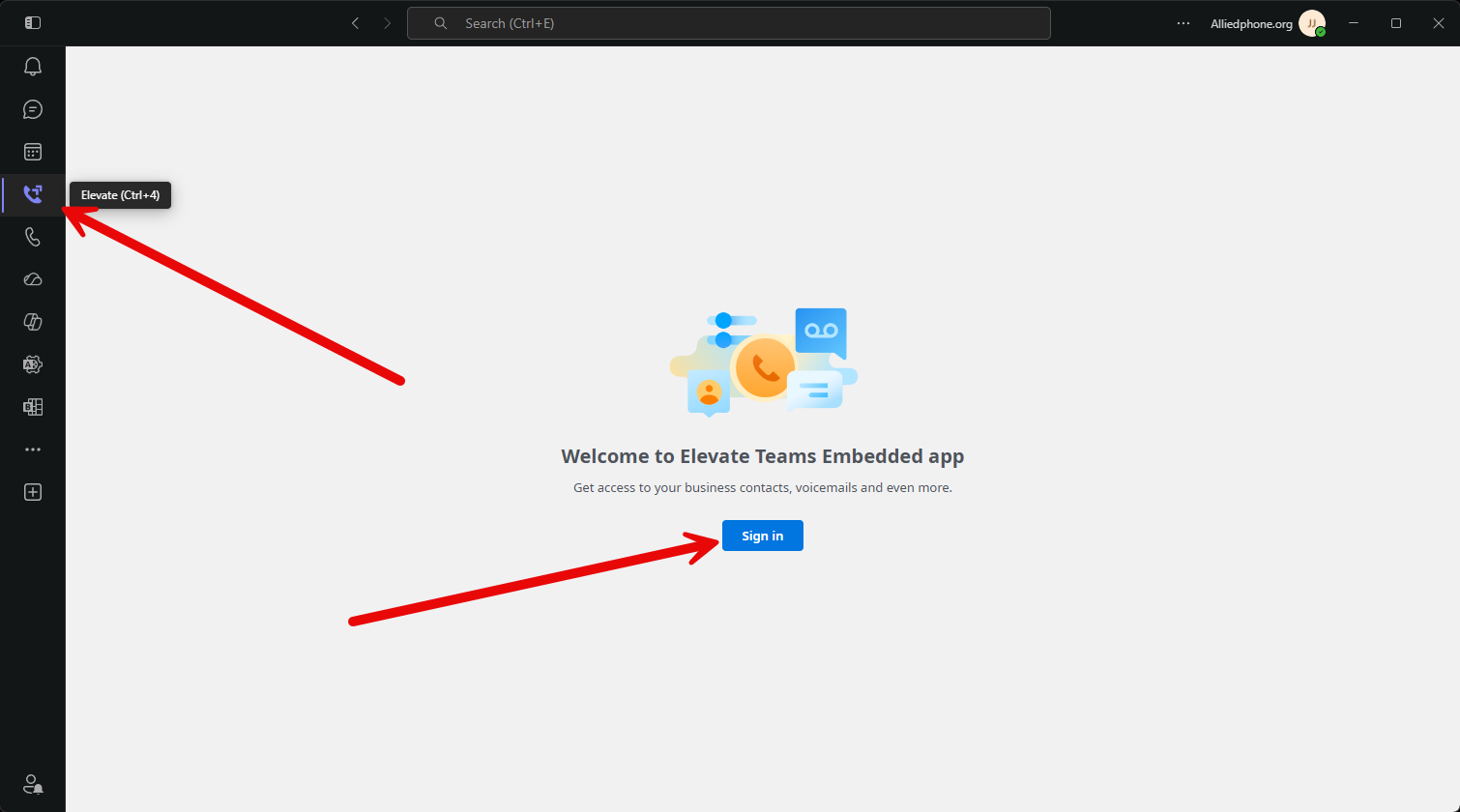
4- Select the Elevate app and choose "Sign in"
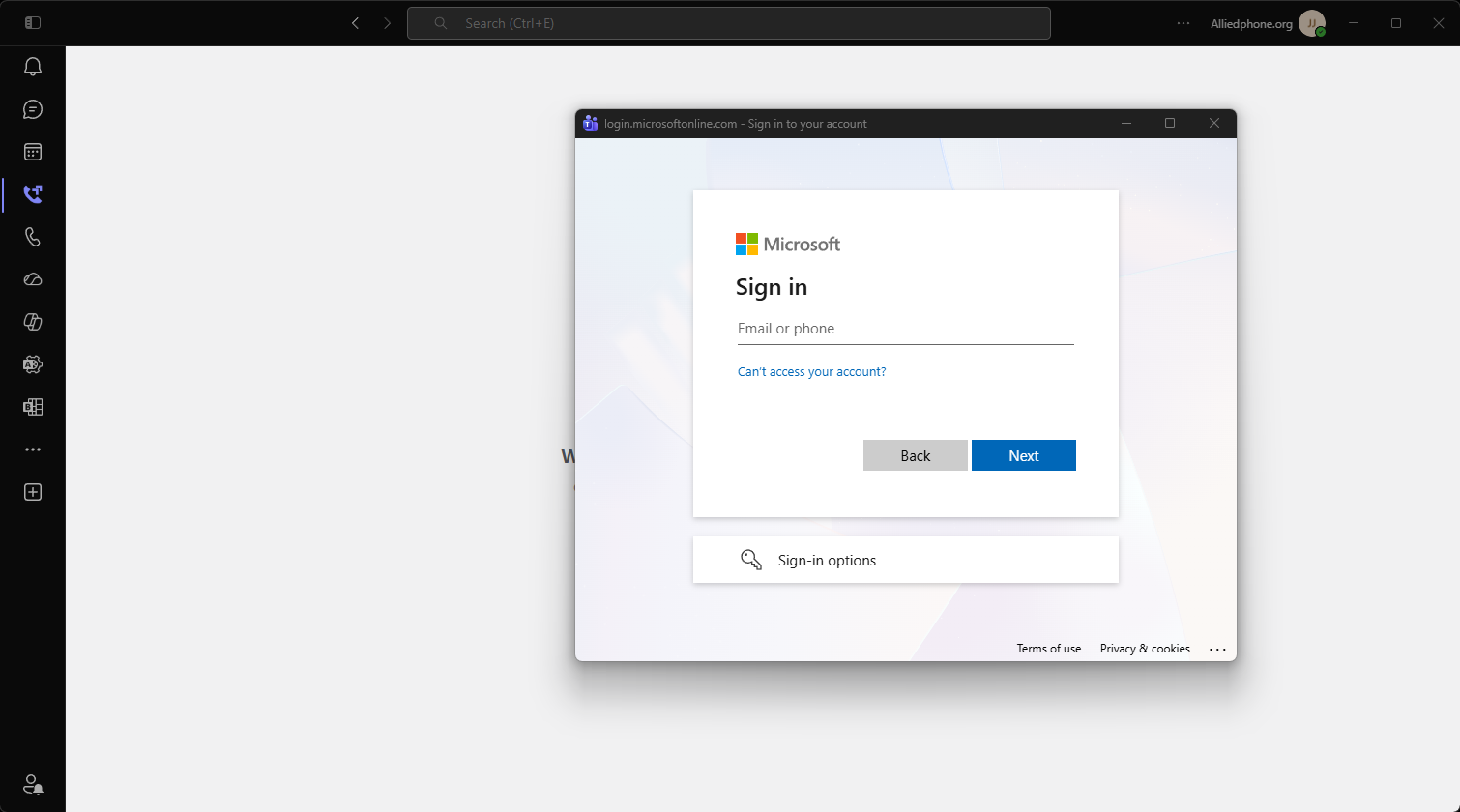
5- A window will pop out to allow you to log in with your credentials. Please sign in
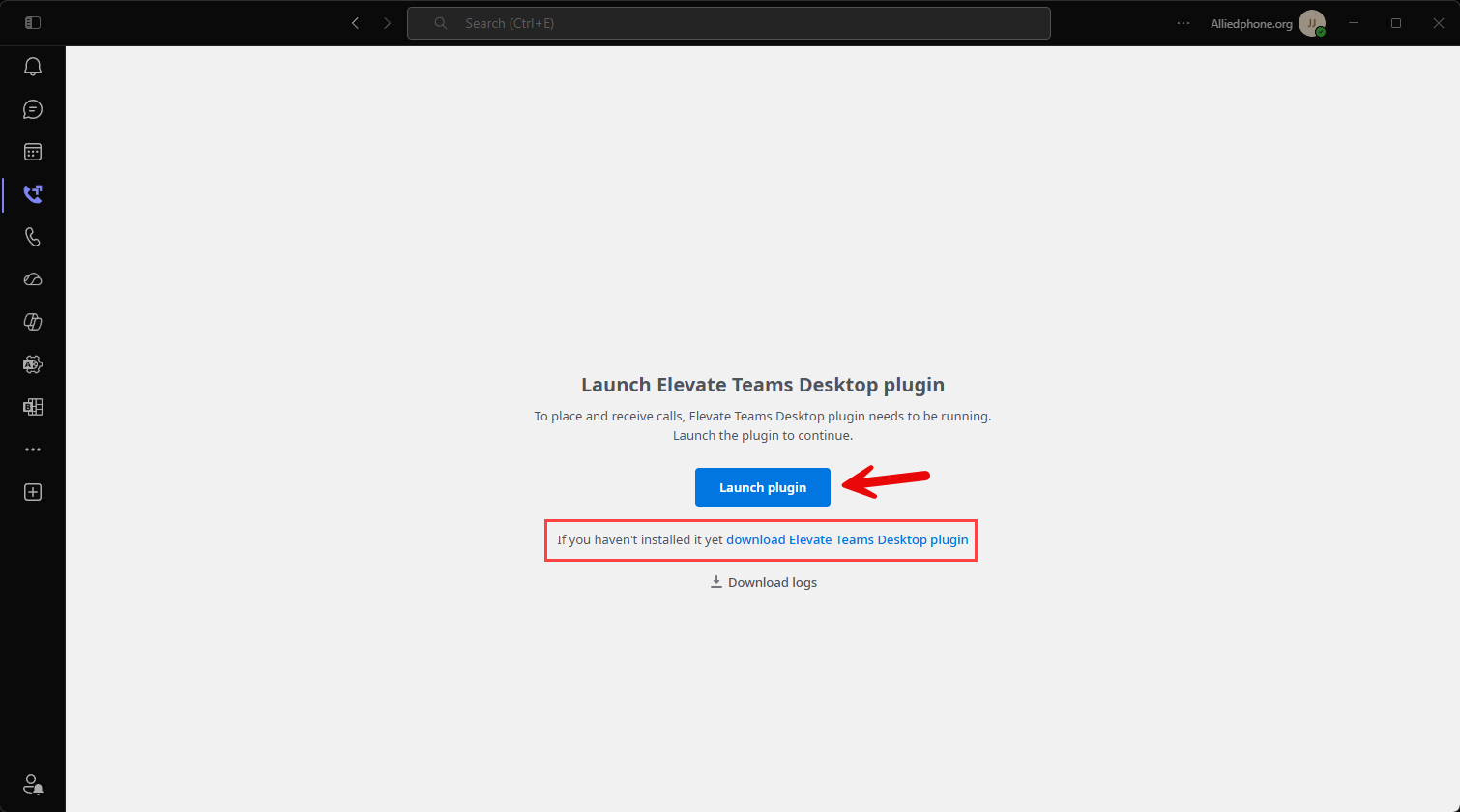
6- Now it's time to "Launch Plugin" If the plugin does not open, it means that your administrator may not have installed this app for you already. If thats the case, please select the link below the "Launch plugin" button to download and install the plugin
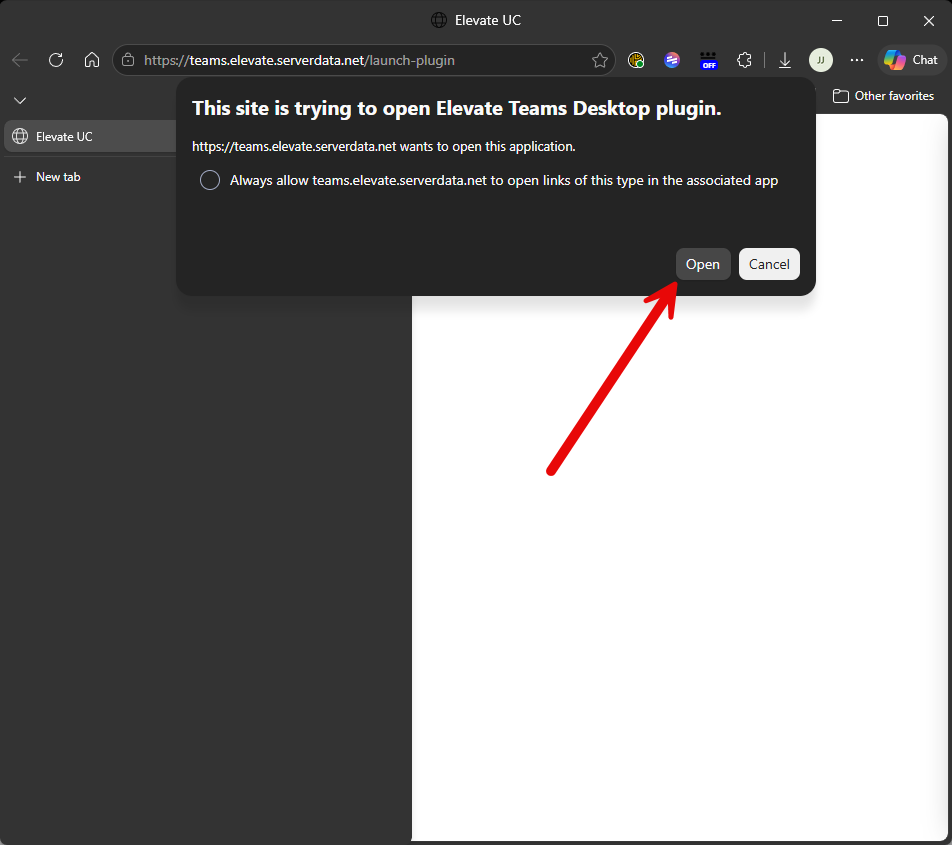
7- When selecting "Launch plugin" a window will open within your default browser. Select "Open" to open the plugin
8- The plugin will remain in the background and will pop out during an active call. Below is what the Icon looks like on the task bar. I recommend right clicking the Icon in your task bar and selecting "Pin to taskbar".

9- Your Elevate embedded app should now look similar to this.
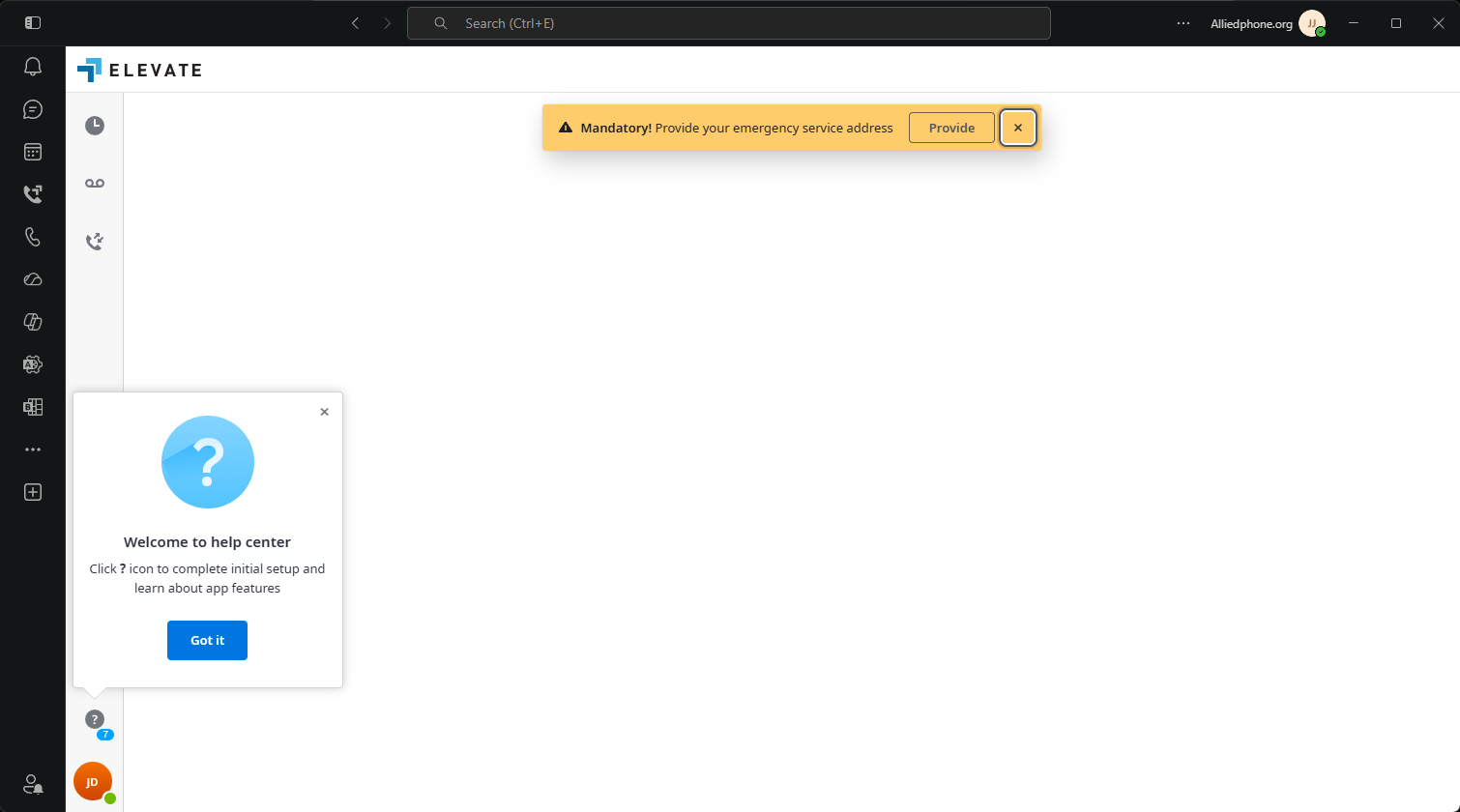
10- Please provide your address for 911 purposes and save your changes.
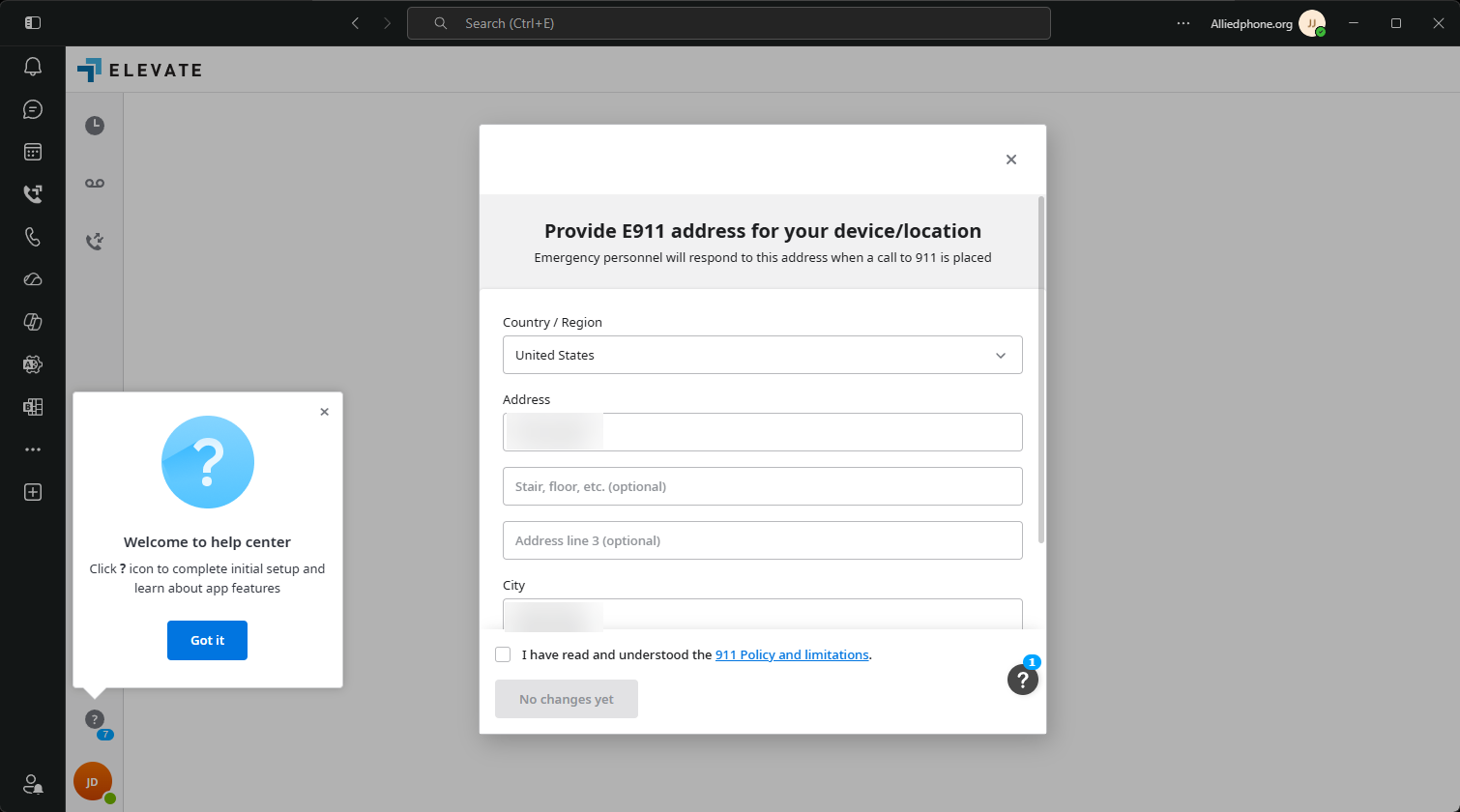
You have now completed the setup for first time use.
Was this article helpful?
That’s Great!
Thank you for your feedback
Sorry! We couldn't be helpful
Thank you for your feedback
Feedback sent
We appreciate your effort and will try to fix the article