This tour will help navigate the Elevate embedded app for first-time users or someone who needs a refresher.
1- Calling
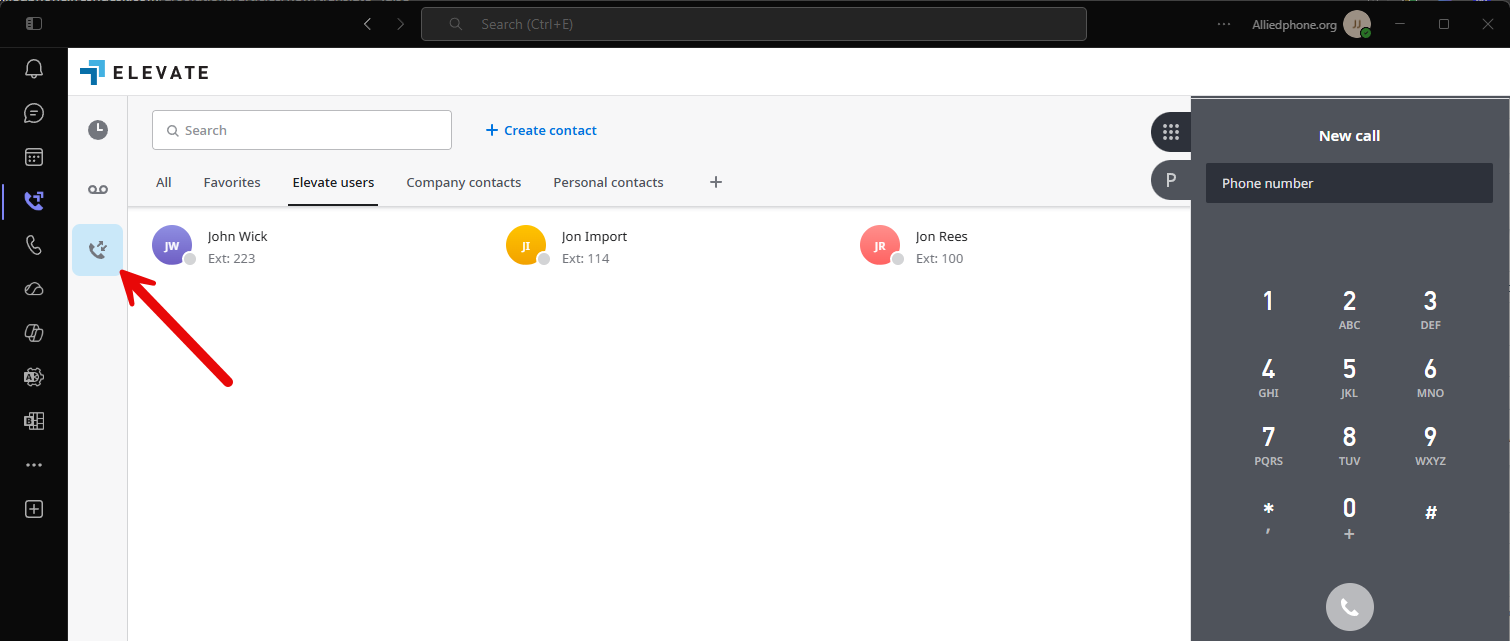
The calling tab provides access to your telephone keypad, Park, Internal & External Contacts. Internal contacts will also provide the current status such as Available, On Call, DND.
Call Park: Places the caller in a shared parking spot so the call can be picked up from another phone using the assigned park location or code.
Hold: Keeps the caller on your phone only. No one else can pick up the call.
2- Voicemail
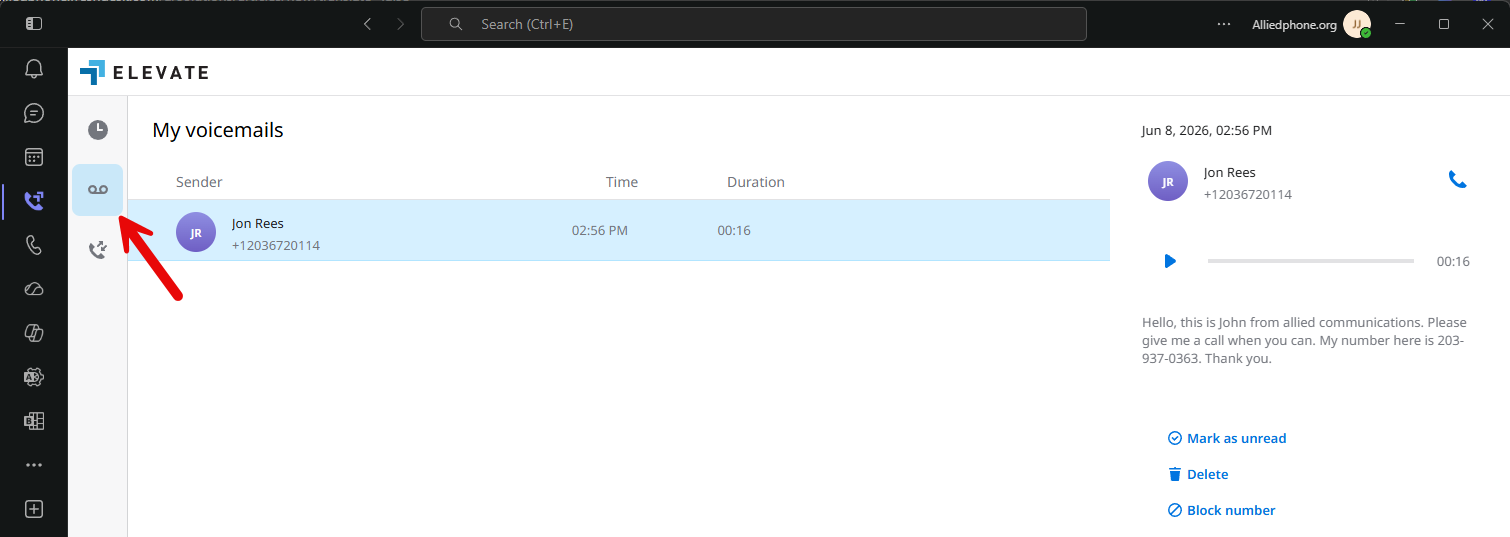
To check your voicemail, log into Elevate Desktop Client and navigate to the voicemail tab by clicking the voicemail icon on the left side of the client. You will be presented with the list of voicemail messages ordered by date. Unread ones will have a blue circle icon on the left of them. The number of unread messages is indicated on the voicemail tab icon. Click a voicemail message to see its details.
The audio player and the transcription of the message will appear on the right side of the Elevate application window. You can click the play button to listen to the message, or click the handset button to call them.
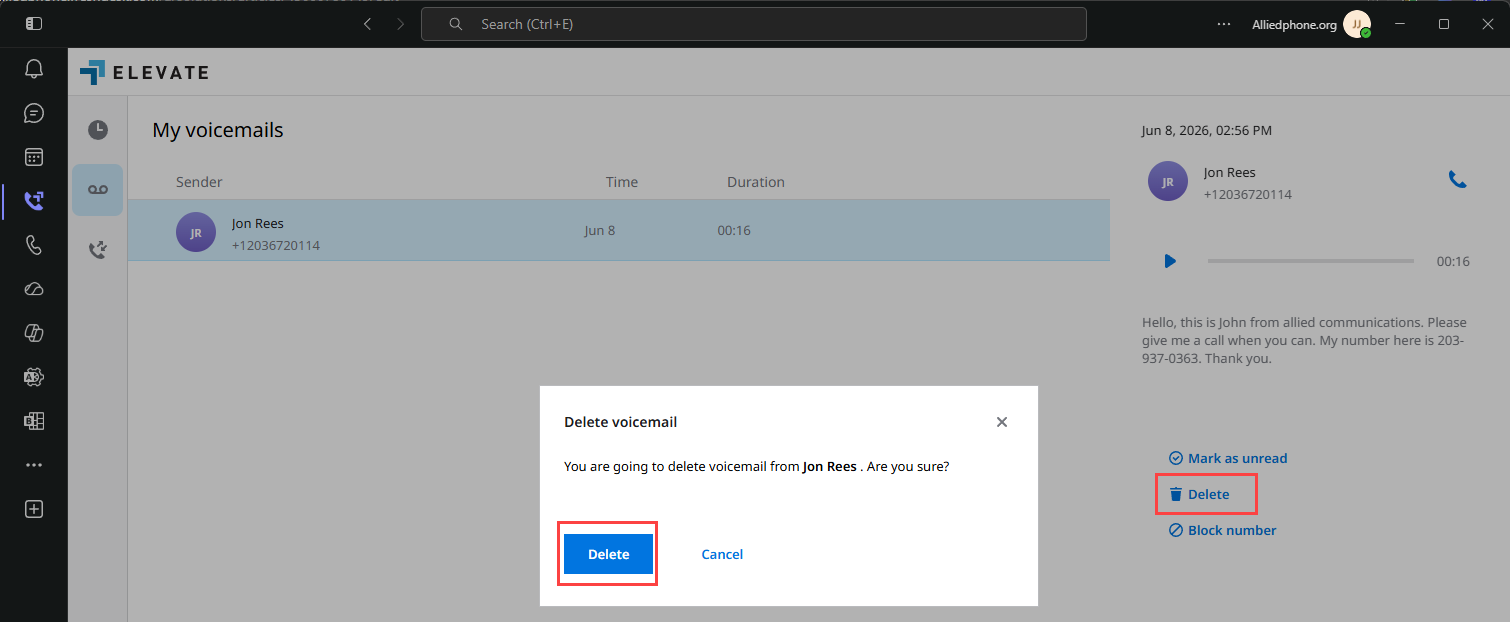
To delete a voicemail message, go to the voicemail section, select the message by clicking it and then click the Delete button in the right lower corner. You’ll be prompted for confirmation on deleting the message. Click Delete to confirm.
Note: Once deleted, the message cannot be recovered from the Elevate application interface or from the CONTROL PANEL.
3- Call History:
Note: It is not possible to clear call history at the moment.
To view your call history via the Elevate Desktop App navigate to the  Call History page on the left navigation pane.
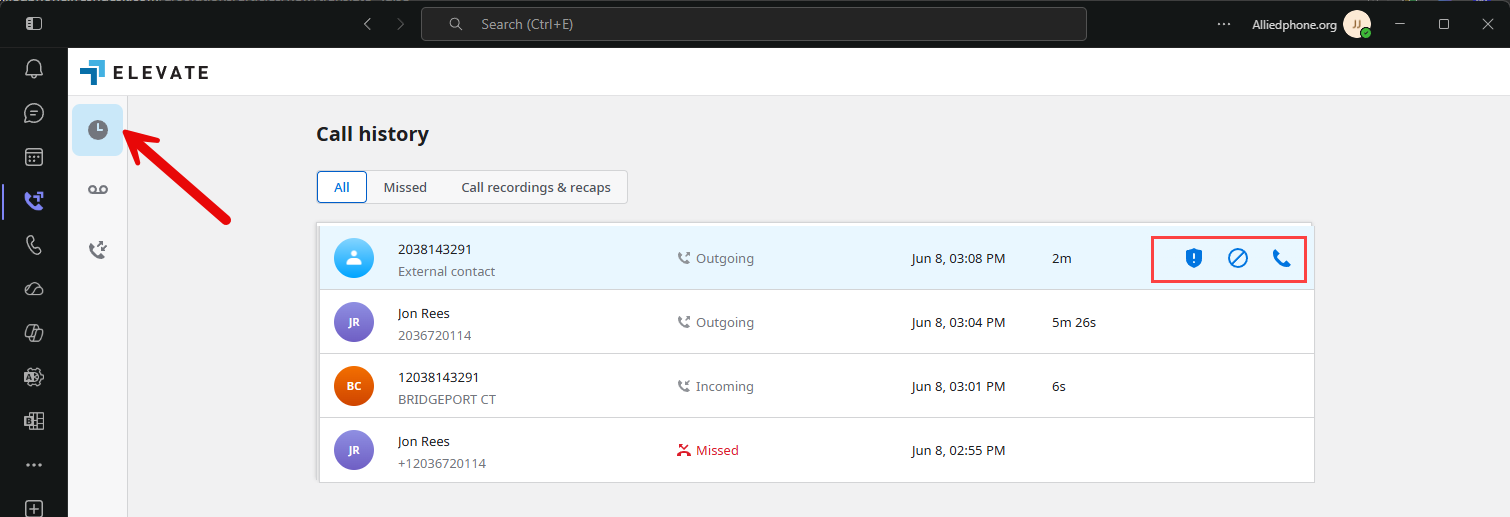
 Call a listed contact or number by hovering the mouse on the Call button.
 Report Spam: This functionality is aimed to allow end-users to help us improve categories and mark spam calls. Users can mark calls as SPAM, automatically sending this phone number to our vendor. This is not meant to be a blocklist for phone numbers - it is feedback functionality only.
 Block the number: After clicking this option, all future calls from a number you have configured will be blocked, and the call will immediately go to voicemail.
4- Help Center
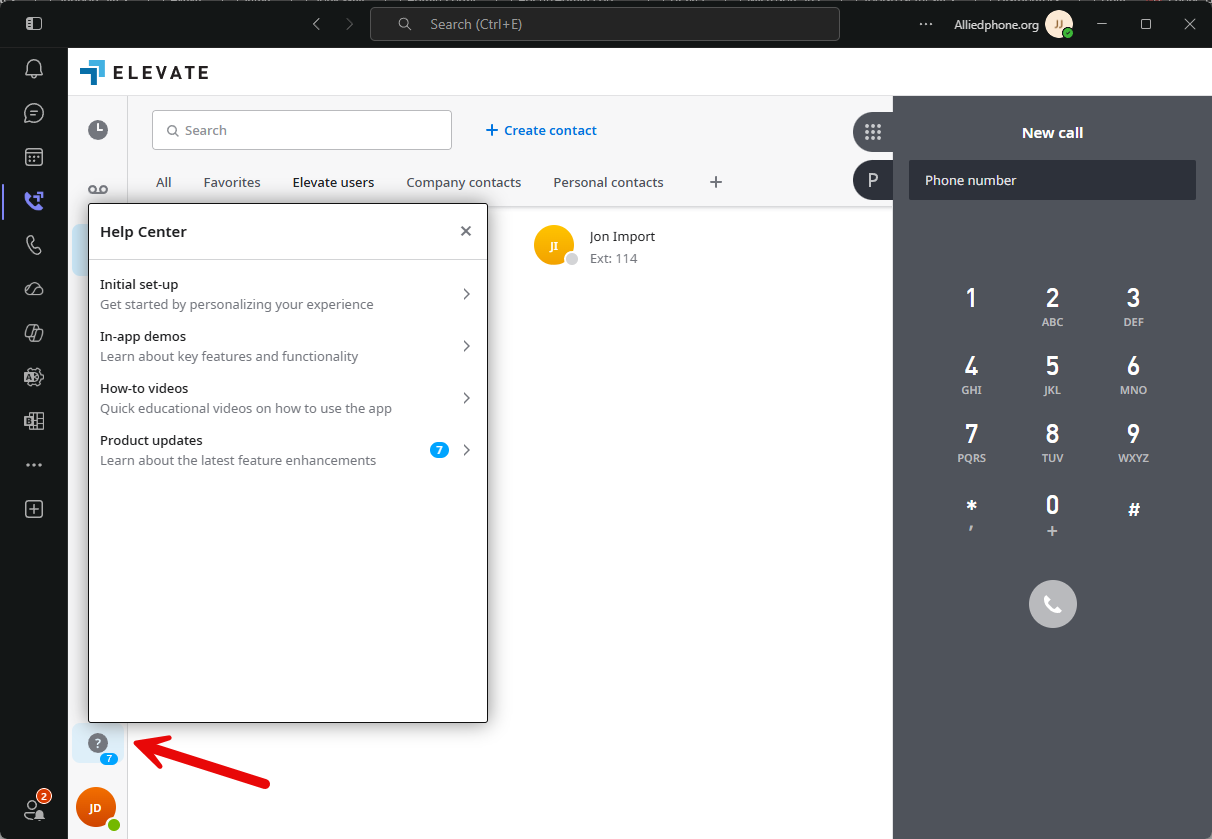
The Elevate Help Center is an in-app guide for new users. It will help users understand navigation within the app. The guide consists of videos and step-by-step instructions.
To access the Elevate Help Center, click the question mark icon in your Elevate Desktop Application:
Initial Setup: Following this guide will teach you where to download the mobile application, how to upload your profile picture, and how to setup your voicemail PIN and greeting.
Learn About App Features: This section will guide you through how to use all the major features of the application.
Video Guides: Explore video guides in this section to get answers to the most common questions.
Product Updates: Here you will be provided with information about new updates to Elevate products.
5- Elevate account settings:
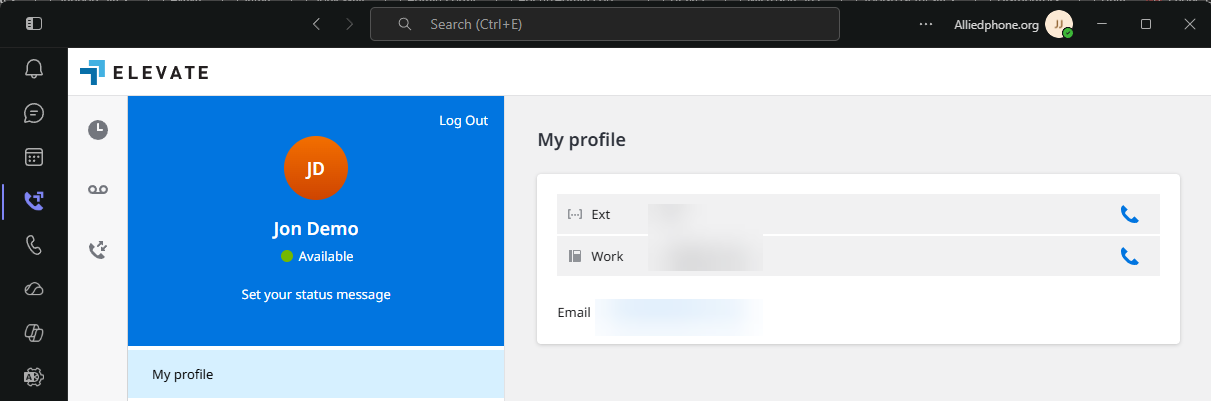
To access your settings, select the button that shows your initials.

My Profile: Displays your extension number, direct phone number and email address associated with your account.
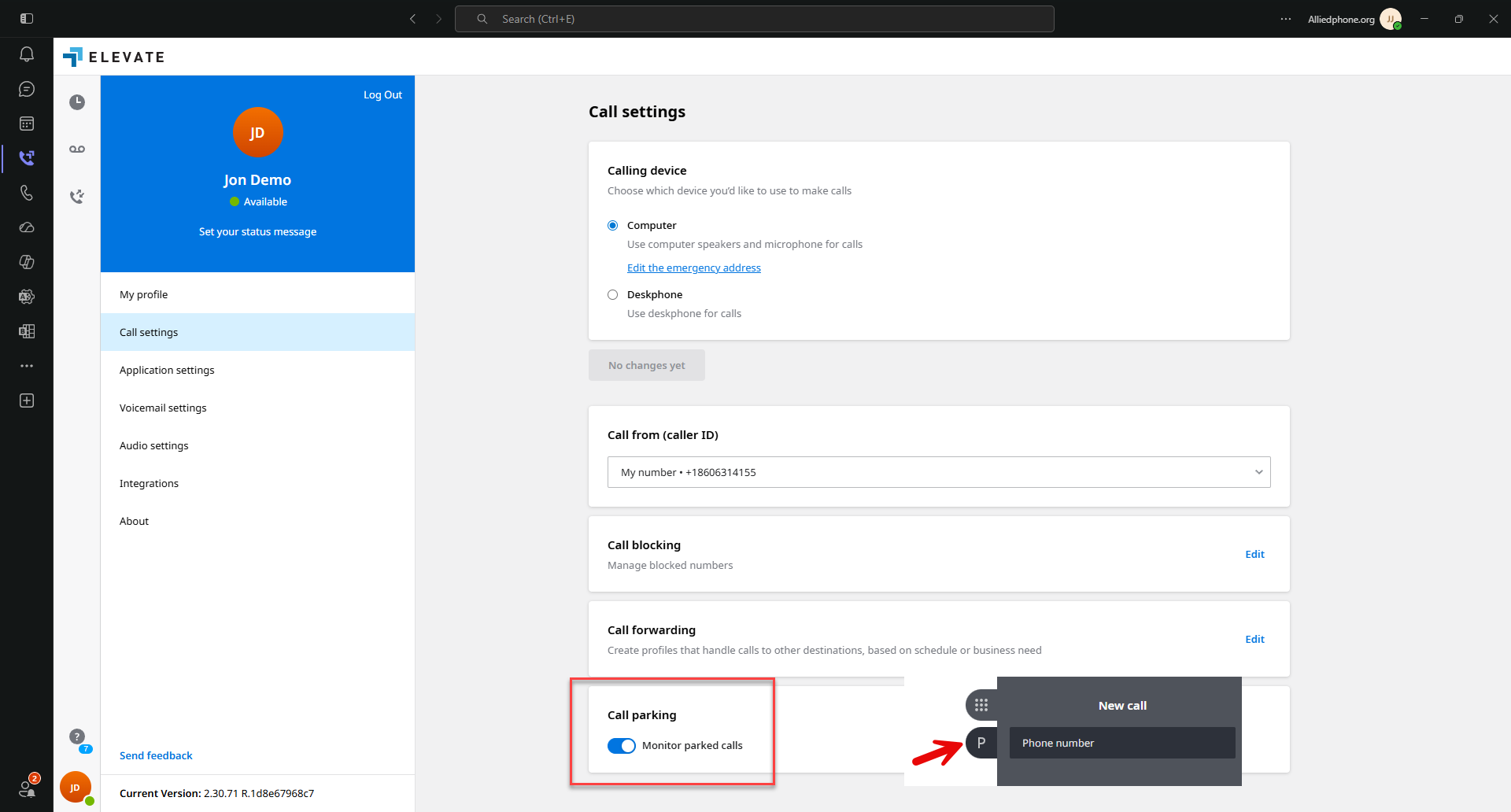
Call Settings:
Allows you to choose between Computer or Deskphone for calling. CLICK HERE to see more about calling device.
Caller ID lets you change how your outbound phone number is displayed.
Call Parking allows you to enable the "Monitor parked calls" feature. I recommend everyone enables this.
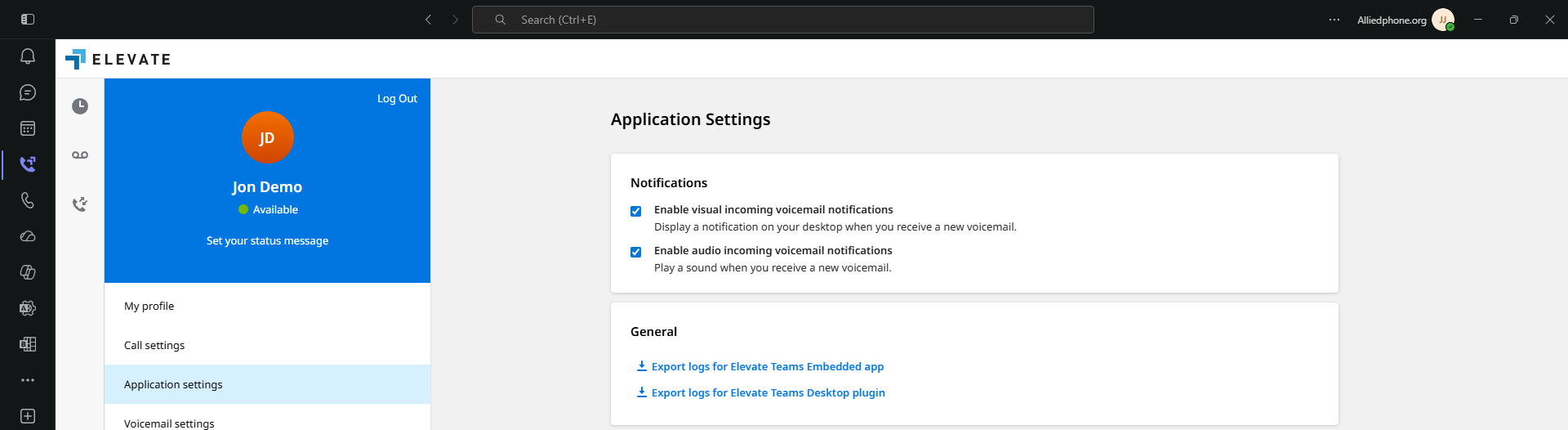
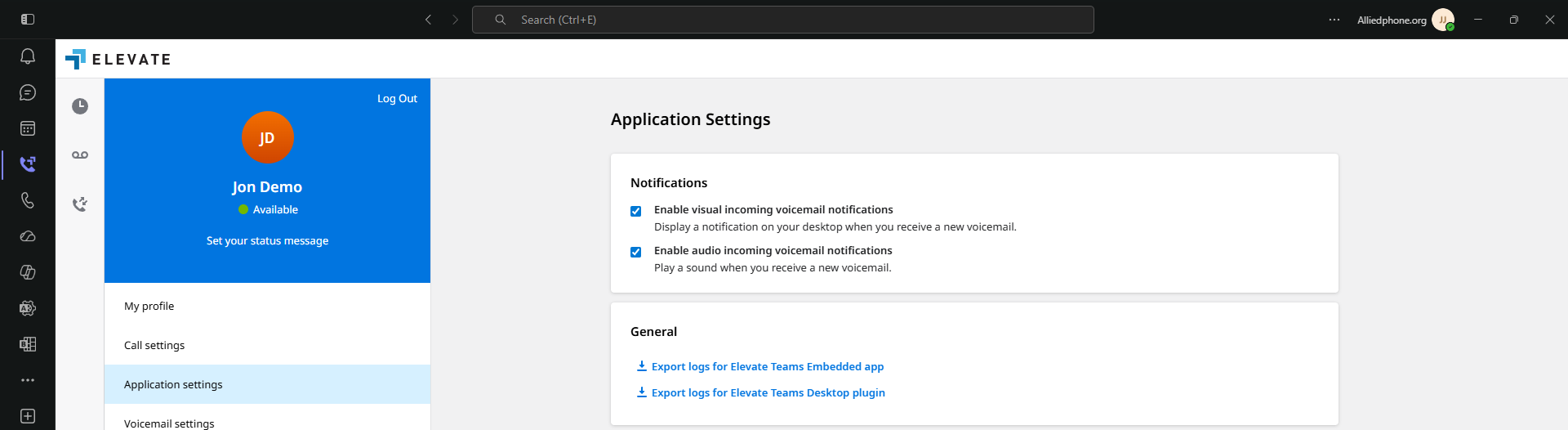
Application Settings:
Choose between audio or visual notifications or both.
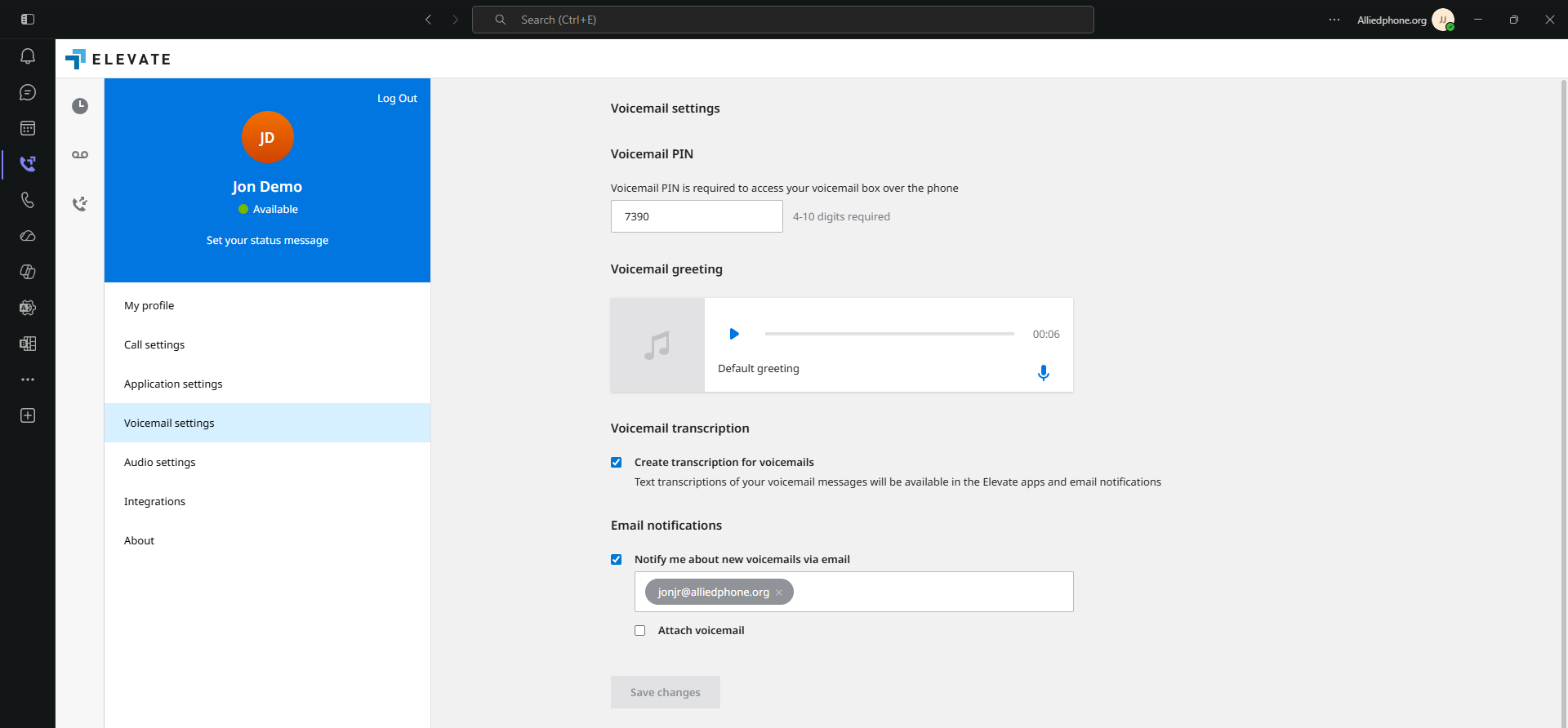
Voicemail Settings:
Allows you to review and adjust your voicemail settings. CLICK HERE to learn more about voicemail settings.
Audio Settings:
This is where you would ensure the application is using the correct Speaker and Microphone. Yealink Headsets provide the ability to pickup and hang up calls by pressing a button on a yealink headset.
Feedback
Sending feedback is always important as this helps understand how Elevate can be improved.
If you require additional support, please submit a ticket above.
Was this article helpful?
That’s Great!
Thank you for your feedback
Sorry! We couldn't be helpful
Thank you for your feedback
Feedback sent
We appreciate your effort and will try to fix the article