The Elevate Teams Mobile app enables you to access core business telephony features directly from the Microsoft Teams app on your mobile device. With Elevate Teams mobile, you can make and receive business calls, check your voicemail (including listening and reading transcriptions), browse and search contacts, and review your call history — all within the Teams mobile experience.
TABLE OF CONTENTS
- Available Features
- How to Get Started
- Onboarding Flow
- Elevate Teams Mobile Features
- Important Limitations
Available Features
- View and search business contacts.
- Make and receive business calls via Elevate mobile app.
- Listen to and manage voicemails (with transcriptions).
- Access recent call history.
- SMS/MMS messaging
How to Get Started
- Teams appUpdate (Administrator Action)
- Your Teams administrator must update the Elevate Teams app to version 1.0.2 as described in this guide.
- Device and app Requirements
- Ensure both the Microsoft Teams mobile app and the Elevate mobile appare installed and up-to-date on your device:
- Elevate Android: version 2.55 or later
- Elevate iOS: version 2.31.0 or later
- Ensure both the Microsoft Teams mobile app and the Elevate mobile appare installed and up-to-date on your device:
- Launching Elevate Teams mobile:
- Open the Teams mobile app on your device.
- Navigate to the More… tab, find the Elevate app, and launch it.
- You may be prompted to sign in again.
Onboarding Flow
To fully enable calling voicemail features, complete the following onboarding steps:
- Sign In
- Log in to Elevate Teams mobile with your credentials.
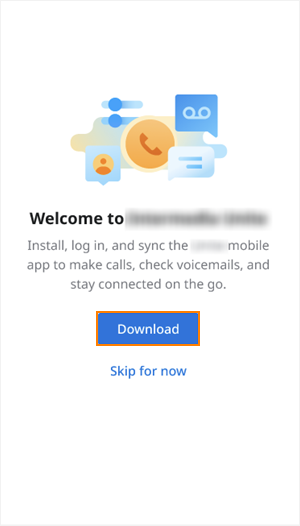
- Download the Elevate mobile App
- On the next screen, you will be prompted to download the Elevate mobile app.
- Tap Download if you have not installed the Elevate app yet.
- If the Elevate app is already installed, tap Skip to continue.
- Activate Elevate mobile
- Open the Elevate app from your phone’s home screen and sign in.
- Return to the Teams app.
- Synchronize Apps
- On the next screen in Elevate Teams mobile, tap Sync now to complete a one-time synchronization with the Elevate mobile app.
- You will be temporarily switched to the Elevate mobile app and then automatically returned to Teams (the screen may briefly flicker).
- Completion
- After a successful sync, you will return to the Teams app, and all calling features will be available.
 | 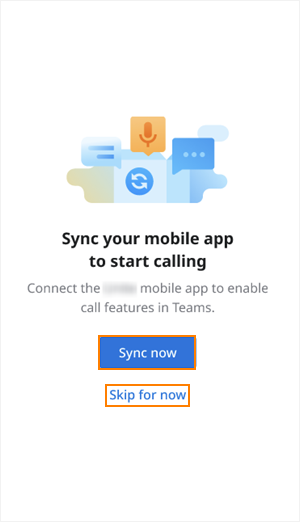 |
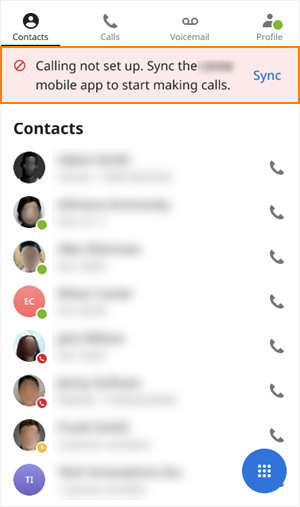
Note: if you skip synchronization, a banner will prompt you to complete it before calling features can be used.
Elevate Teams Mobile Features
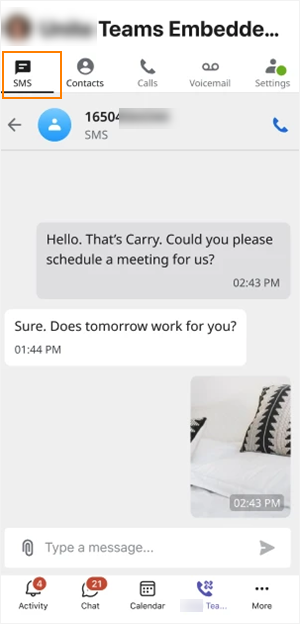
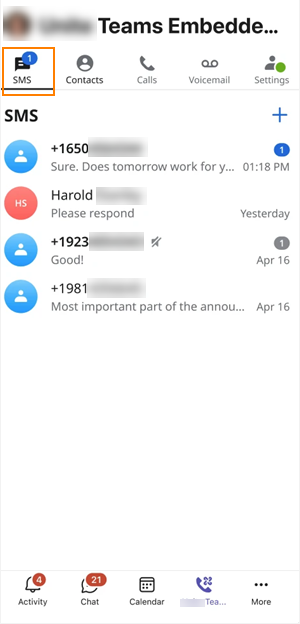
SMS/MMS Messaging (IF Enabled)
- Send SMS: Create and send new SMS messages directly from Teams mobile.
- Receive SMS: Receive incoming SMS messages within the app.
- Group MMS Chats: Create group MMS chats and add contacts to participate in conversations.
- Attachments: Send and receive MMS attachments, including supported media types.
- Availability: The SMS tab is visible only if SMS is enabled for the account. For more details, see: Elevate: SMS Feature Overview .
- Notifications: Incoming message notifications are delivered via the Elevate mobile application; all other functionality is supported within Teams mobile.
 |  |
Contacts
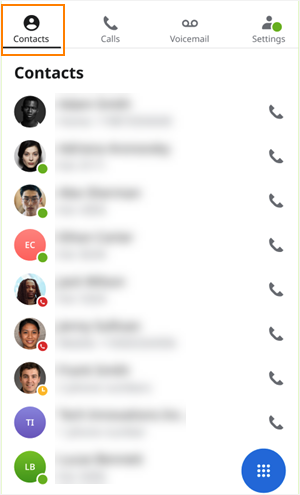
- View and Search Contacts: Access your business contacts from the Teams app. Search by name or number and browse saved contacts.
- View contact groups.
Note: creating/editing contacts or groups, syncing contacts with your phone, and changing primary numbers are not supported.
Calls
How to Make an Outgoing Call:
- If synchronization is complete, there will be no restrictions in the Callssection.
- Find a contact and tap the phone icon or phone number.
- Alternatively, use the dialpad (lower-right corner) to enter a number directly.
- If synchronization is not complete, tap the banner in the Callssection and follow prompts to finish sync.
- Attempting to call before sync will display an error indicating synchronization is required.
How Calls Work:
- Outgoing calls initiated from Teams will automatically redirect you to the Elevate mobile app, where the call is placed.
- After the call ends, you will be automatically returned to Teams.
Important: all incoming calls and missed call notifications will appear in the Elevate mobile app, not in Teams.
Voicemails
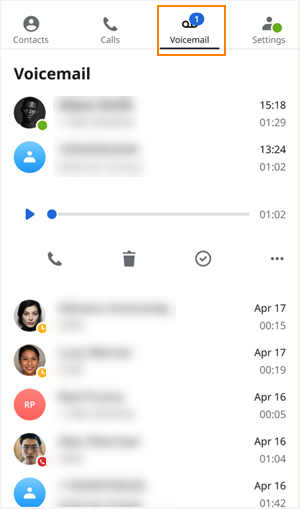
- Listen to Voicemails: Access and play your voicemails from within the Teams app.
- Voicemail Transcription: Read voicemail transcriptions (when available).
- Voicemail Notifications: All voicemail notifications come from the Elevate mobile app, not Teams.
- Voicemail Actions: Delete, archive, or manage voicemails as in the Elevate mobile app.
Call History
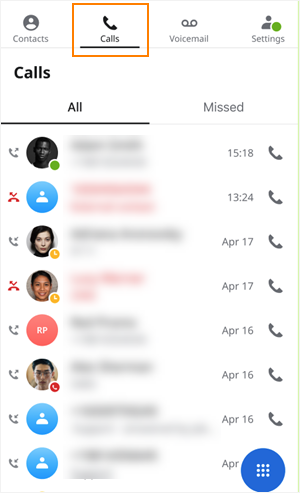
- View Call History: Review recent incoming, outgoing, and missed calls in Teams mobile.
- Redial & Quick Call: Tap any call in history to quickly call the number back (handled via Elevate mobile app).
- Limitations: Call blocking, spam reporting, and Hunt Group call tabs are not available.
Settings
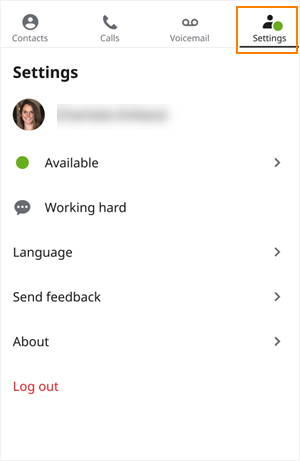
- User Status: Change your status (available, away, do not disturb, etc.).
- Language: Change the interface language.
- Legal Information: View legal and privacy documentation.
- App Version: Check the version of the Elevate Teams app.
- Send Feedback: Submit feedback or report issues directly from the app.
Important Limitations
- No support for chat, file sharing, meetings, Hunt Group, or Contact Center features.
- All notifications are managed through the Elevate Mobile app.
- Contact and group creation/editing, phone sync, and primary number management are unavailable.
Was this article helpful?
That’s Great!
Thank you for your feedback
Sorry! We couldn't be helpful
Thank you for your feedback
Feedback sent
We appreciate your effort and will try to fix the article