In Elevate Teams Embedded Integration, you have numerous options to manage your current call.
These options are available on both inbound and outbound calls. Refer to the article Elevate Embedded Teams Integration: Start A New Call for more information on how to start calls.
Available options depend on the current application mode. The application can be in two different modes: Computer and Deskphone mode. The article Elevate Teams Embedded Integration: Deskphone and Computer modes gives more detail on the differences between these modes.
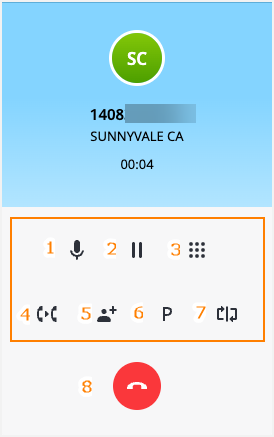
- In Computer mode, you will have the full list of options:
- Mute your microphone
- Place the call on Hold
- Open the Keypad
- Transfer the call
- Add a call and Merge calls
- Park the call
- Flip the call
- Finish the call
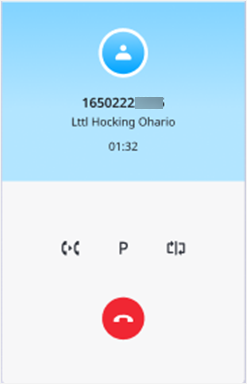
- In Deskphone mode, you can:
- Flip the call
- Park the call
- Transfer the call
- Finish the call
In the incoming call notification pop-up window you can do the following:
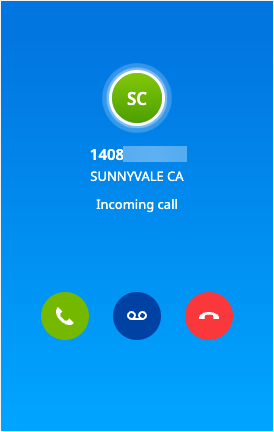
- Answer call allows you to quickly answer calls in Elevate Teams Embedded Integration.
- Decline call stops incoming calls in Teams Embedded Integration, all other instances will still have that call active.
- Forward to voicemail stops incoming calls in Teams Embedded Integration and all other devices/apps and forwards that call to voicemail, ignoring any call routing rules.
Calls on Hold
When you place the call on hold, the call is paused, and the audio stops for you. Another party will hear the music on hold (you can learn more about the music on hold in the article How to change Music on Hold on Elevate).
Keypad and Park options will not be available during the Hold:
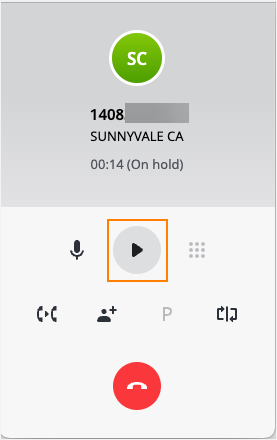
You can click the Resume button to unpause the call.
Keypad option
The Keypad option allows you to quickly open the keypad during the call. In the desktop plugin, for the active call, click the Keypad button:
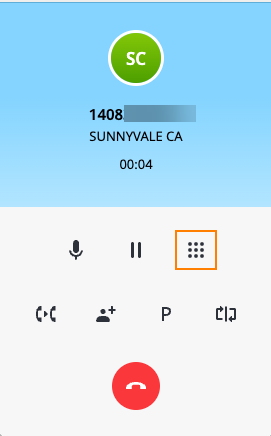
The display will change to show the keypad. To close the keypad and return to the call controls, click on the Back icon.
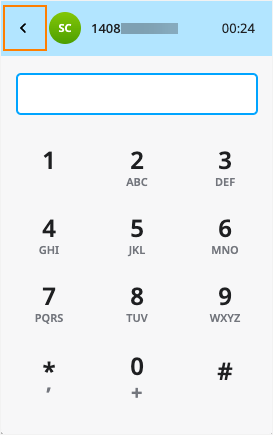
Note: the keypad will not accept input if there is no microphone connected to the app or if the microphone was connected but disabled.
How to Transfer a Call
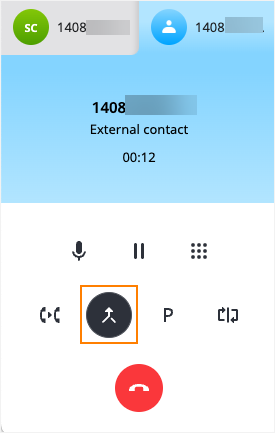
In the desktop plugin, on the tab for the call you want to transfer, click the Transfer button:
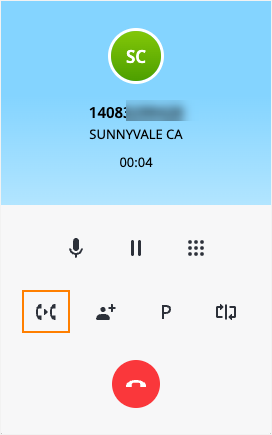
For corporate contacts, you can check the contact card and transfer to one of the phone numbers for the contact. It is possible to choose the number to transfer to in case a contact has several.
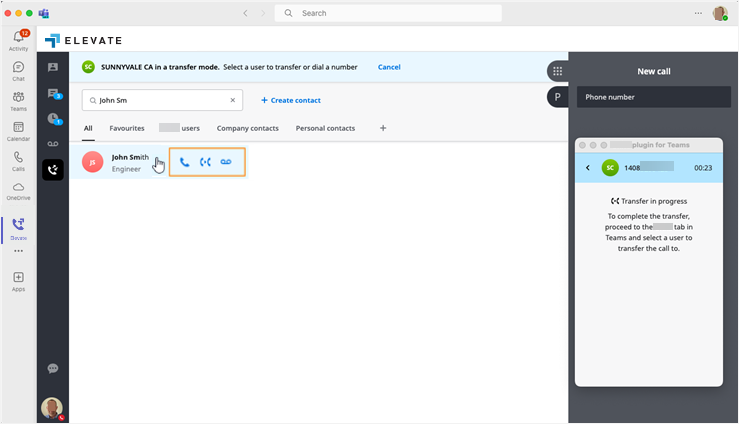
Otherwise, you can use the keypad on the right to manually type the preferred number.
Elevate Desktop application provides 3 options for transferring calls:
- The warm transferallows you to consult with the party you are transferring a call to before completing the transfer. For a warm transfer:
- While on an active, call press Transfer.
- Select a contact or use the keypad to enter a phone number.
- Click on the Warm Transfer icon. Your first call will be placed on hold, you will receive an incoming call from Caller 2; you will then need to select the Answer button to establish a call with caller 2.
- Click on the Complete button to transfer the call.
- The blind transferallows you to transfer the call without having a conversation with another party. For a blind transfer:
- While on an active call, press Transfer.
- Select a contact or use the keypad to enter a phone number.
- Click on the Blind Transfer icon.
- Transfer to voicemail
- While on an active call, press Transfer.
- Select the Transfer to voicemail icon.
Note: you can transfer a call to the Voicemail only for corporate contacts within your organization.
If a recipient has several numbers assigned, you may select which number to transfer the call to.
- Click on the contact's name.
- Select the phone number.
- Select the desired transfer type.
 , followed by
  to resume the previous call.
Receiving a New Call During an Active Call
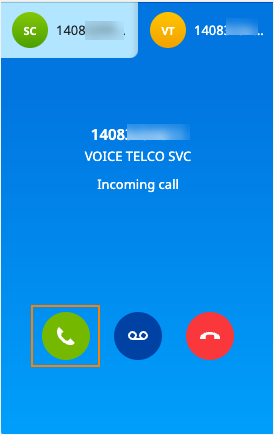
- The first call is automatically placed on hold.
- The callee can start a conversation with the second caller.
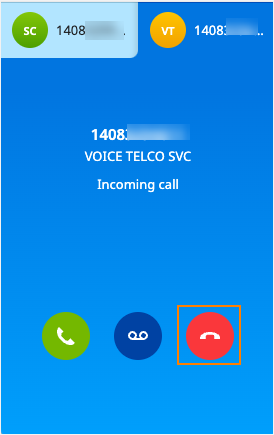
- The caller still hears a ringback tone.
- After a timeout, the call is forwarded to voicemail.
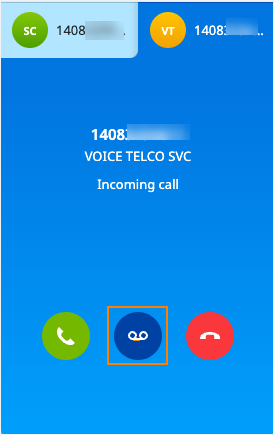
- If the callee chooses this option, the call goes to voicemail immediately.
How to Add and Merge Calls
Adding a new call over an active one and merging them together creates a 3-way call.
To add a new call press Add Call while on an active call:
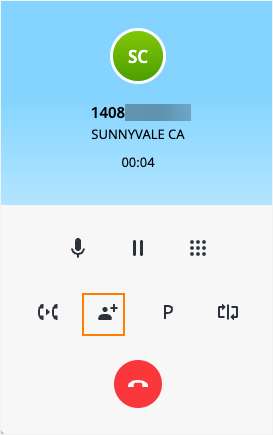
To merge two calls together press Merge Calls:
Actions When Receiving 3 or More Calls
When a 3rd or 4th call is received, the same options are available as when a second call is received (Receiving a New Call During an Active Call).
Note: an incoming 5th call will not be delivered to the app and will be routed directly to voicemail. There is a 4 call limit on active calls.
How to Park a Call
Call parking allows you to place the caller on hold on reserved extensions, so you or your coworkers can pick it up from another phone.
To park a call:
- While on an active call, press the Park icon on the screen.
- You will hear an announcement telling you which extension your call is parked on.
It will also show up on the screen.
Note: Call Park extension range depends on the account's set extension length. 3-digit accounts are 980 to 987 and 989; 4-digit accounts are 9980 to 9989; 5-digit accounts are 99980 to 99989. - Tell your coworkers which extension the call is parked on.
- To pick up the call, you or your coworker can dial the extension the call is parked on.
Note: after 60 seconds of a call being parked it will ring back at the original phone. If not answered, the call will be routed to voicemail.
How to Flip a Call
Call Flip allows you to continue the current active call using a different device.
While on an active call: click on the Flip button.
- The call will be placed on hold.
- All other devices assigned to this user will start ringing.
- You can pick up the call and continue the conversation on a different device.
Was this article helpful?
That’s Great!
Thank you for your feedback
Sorry! We couldn't be helpful
Thank you for your feedback
Feedback sent
We appreciate your effort and will try to fix the article